


Osmo 360 II settings guide
DJI Osmo 360 II 8K60 vs 6K60 vs 4K Modes: Which Setting Should You Actually Use?
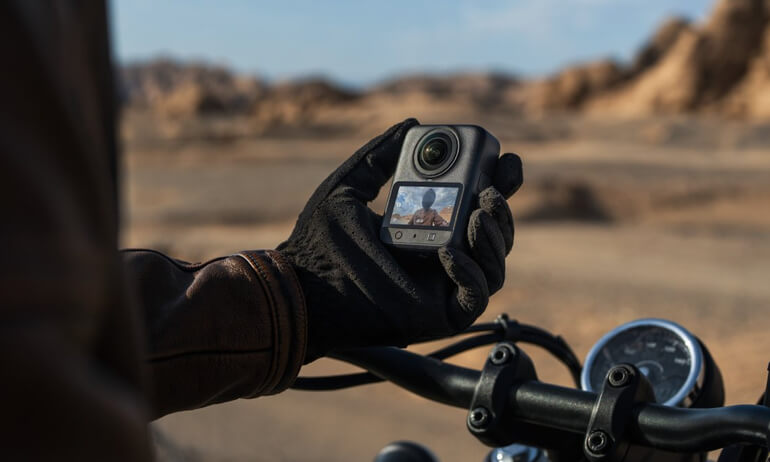
8K60 gives you the most reframing freedom. 6K60 is the better efficiency choice for many everyday 360 shoots. 4K is usually a different shooting workflow, not simply a lower-resolution version of the same 360 mode. Choose 4K only after deciding that you want a flat single-lens video, a wider Boost view, or dedicated panoramic slow motion.
Fast answer
Maximum 360 flexibility8K60 panoramic
Everyday 360 capture6K60—or 6K30 when 60fps is unnecessary
Ready-to-share flat video4K Single-Lens or Boost
Start with the capture type
Osmo 360 II Modes at a Glance
The headline numbers belong to different recording families. Compare them only after deciding whether the camera should capture every direction or a finished flat view.
Swipe to see every column.
| Recording family | Maximum listed setting | What you get | Best starting use |
|---|---|---|---|
| Normal panoramic video |
8K60 7680×3840 |
Full stitched 360 source for reframing later | Action, travel and paid work where the final angle is chosen in post |
| Normal panoramic video |
6K60 6000×3000 |
Full 360 source with fewer source pixels than 8K | Everyday 360 capture and a more manageable edit |
| Single-Lens Video | 4K60 | Conventional flat video from one lens | Quick delivery when you can compose during capture |
| Single-Lens Boost | 4K120 | Flat ultra-wide action video in supported aspect ratios | Wide POV and up to 4× playback slow motion |
| Panoramic slow motion | 4K240 | Specialized high-frame-rate 360 capture | Brief action moments intended for up to 8× slow motion |
DJI lists 8K and 6K normal panoramic video at 24/25/30/48/50/60fps. Flat 4K options and supported aspect ratios vary by Single-Lens or Boost mode. The 4K240 figure belongs to panoramic slow motion, not normal panoramic video.
The comparison most buyers miss
8K, 6K and 4K Are Not Three Versions of the Same Mode
Osmo 360 II records a complete spherical scene at 8K or 6K in normal panoramic video. You point a virtual camera inside that sphere during editing. Its 4K choices solve other jobs: Single-Lens produces a normal flat clip, Boost creates an extra-wide flat action view, and panoramic slow motion reaches 4K240 for high-speed moments.
Choose the workflow before the number. If you need to decide where the camera points after the event, stay in panoramic video. If you already know the composition and want a conventional file, choose a single-lens mode.
Maximum normal 360 setting
Should I Shoot Everything in 8K60?
No. Start with 8K60 for fast action when the final angle is uncertain. A motorcycle ride, ski run or one-take event can produce several edits from one panoramic recording. The larger source gives a reframe more pixels to work with, while 60fps supports smoother motion and a 2× slowdown on a 30fps timeline.
Prioritize it when a missed angle would be expensive or one take must create forward, reverse and vertical edits. It is not an automatic quality guarantee: lens cleanliness, camera position, light, exposure, stitching distance and export settings still shape the result. For a very wide final view with little crop, the practical advantage over 6K may be smaller. Routine clips that need only a broad view rarely justify making 8K60 the automatic all-day setting.
A crucial expectation check
8K360 vs 8K Flat Video: Why They Are Not the Same
The 7680×3840 frame describes the full equirectangular sphere. A flat export uses only one window from it, so “8K 360” does not mean every reframed angle is an 8K flat video. Detail depends on field of view, zoom, projection and output size. An ultra-wide reframe uses more of the sphere; a tight crop uses less.
Practical rule: move or mount the camera closer when a subject matters. Higher source resolution helps a reframe; it does not replace good placement.
The everyday panoramic setting
When Is 6K60 the Smarter Choice?
Use 6K60 when you want full 360 safety but do not need maximum source resolution for every clip. It is a sensible default for travel, long walks and repeatable social content where reframing matters more than deep cropping.
A 6000×3000 source contains fewer pixels than 7680×3840, so it is generally less demanding to store, transfer and process. The exact difference depends on encoding, scene, clip length, device and software; DJI publishes no universal “6K is X% lighter” figure.
Choose 60fps for important motion or occasional 2× slowdowns on a 30fps timeline. Use 6K30 for calmer normal-speed coverage, and test the exact setting on your edit device before a trip.
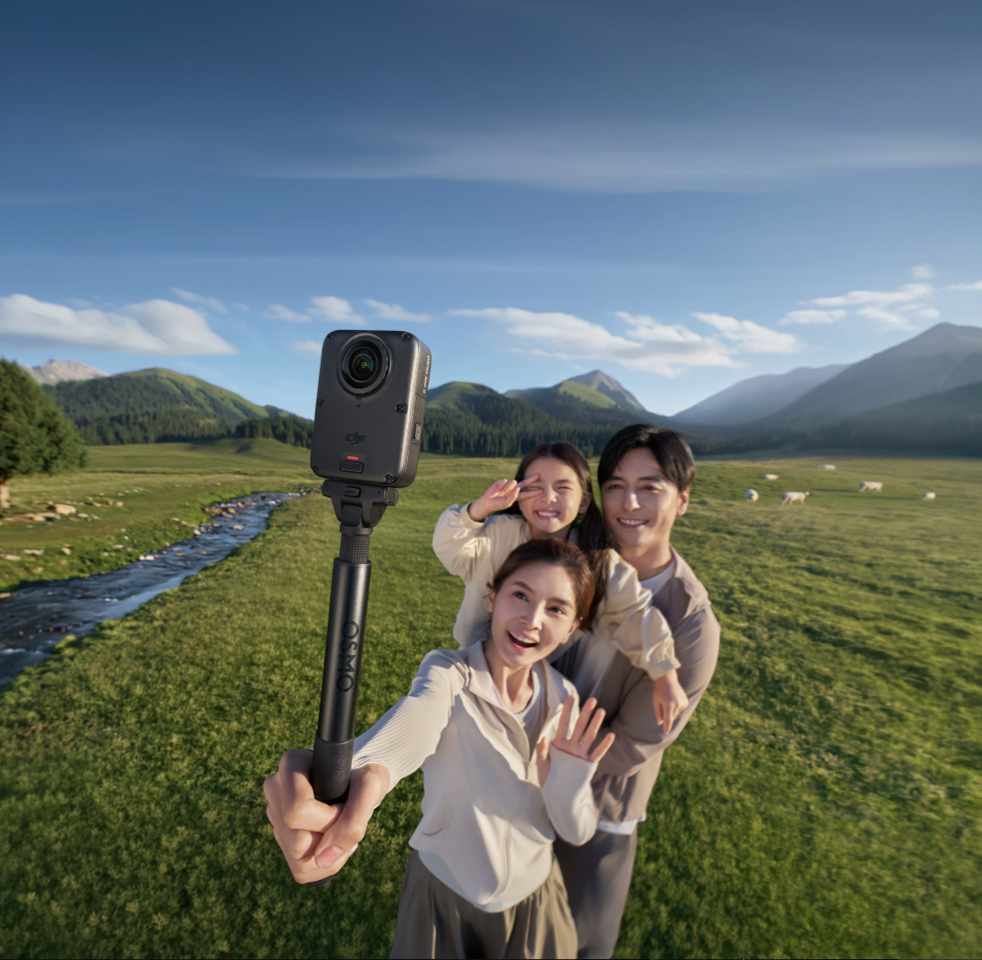
Frame rate is a creative choice
6K30 vs 6K60: Do You Need 60fps?
Choose 6K60 for rapid movement or a planned half-speed section in a 30fps edit. Choose 6K30 for normal-speed delivery when the scene is controlled. Sixty frames per second is not automatically more cinematic or detailed; it doubles the frames recorded and processed. For a mixed day, use 60fps for rides and sports, then 30fps for talking segments or static scenery.
Three different 4K jobs
What Does 4K Actually Mean on Osmo 360 II?
“4K” on this camera can mean a conventional single-lens clip, a wider Boost view or high-speed panoramic slow motion. Confirm the mode name, not only the resolution badge.
Flat video from one lens at up to 60fps. Choose it when you can frame the subject while recording and want a conventional file with less reframing work.
Extra-wide flat action video. Supported 4:3, 16:9 and 9:16 options reach 100/120fps; the 1:1 option tops out at 60fps.
Dedicated panoramic slow motion at up to 240fps, intended for brief high-speed action and up to 8× playback slow motion.
4K Single-Lens: The Fastest Route to a Normal Video
Point one lens at the subject and leave with an MP4 flat video instead of a panoramic OSV source that requires reframing. It suits walk-and-talk clips, quick posts and fixed forward views. DJI also allows front/rear lens switching during Single-Lens recording without interrupting the clip, up to 4K60.
The tradeoff happens on location: anything outside the selected view is not waiting in a sphere for recovery. Use panoramic video when the subject may move behind the camera or one take must create several angles.
4K120 Single-Lens vs 4K240 Panoramic Slow Motion
The 4K120 flat option is specifically Single-Lens Boost, not ordinary Single-Lens Video, which tops out at 4K60. Use 4K120 Boost for a wide flat action view and up to 4× slow motion on a 30fps timeline. Use 4K240 panoramic slow motion when the decisive direction is uncertain and the shot needs up to 8× captured slow motion on a 30fps timeline.
The 4K240 choice is specialized, not an 8K60 replacement: it trades normal panoramic resolution for a much higher frame rate. Reserve either high-speed setting for brief, well-lit moments and test the complete transfer and editing path before the event. DJI Studio can add a separate AI-interpolation workflow, but generated frames should not be confused with the camera’s captured frame rate.
Think in final fields of view
Which Resolution Holds Up Best After Reframing?
8K60 gives a reframe the strongest starting point because the full sphere contains more source pixels. The tighter the crop inside that sphere, the more useful the larger 8K source becomes. A broad environmental view asks less than a vertical crop tracking one rider.
Plan delivery before recording. A 16:9 YouTube video and a 9:16 Reel use the sphere differently; each needs its own framing. Choose 4K Single-Lens or Boost when one known flat angle is enough, 8K60 for several outputs or an unpredictable subject, and 6K60 between those extremes.

Do not choose by resolution alone
What About Low Light and SuperNight?
DJI lists panoramic SuperNight at both 8K and 6K from 24 to 60fps, plus single-lens SuperNight at 4K or 2.7K from 25 to 30fps. Low light therefore does not force a simple 8K-to-6K switch.
Stability, subject movement, exposure and reframing still matter. Test at the actual location and inspect a reframed export—not only the full sphere on the camera screen. Streetlights, vehicle lights, snow and dark clothing can create very different demands.
Use-case recommendations
Which Setting Is Best for Motorcycle, Skiing, Travel and Social Media?
These are editorial starting points based on the official mode table and likely workflow—not guarantees for every subject, light level or editing system.
Swipe to see the recommendation.
| Scenario | Start with | Why | Switch when… |
|---|---|---|---|
| Motorcycle, skiing or MTB | 8K60 panoramic | Fast motion and uncertain direction reward maximum reframe flexibility | Use 4K120 Boost for a predictable flat POV, or 4K240 pano for a brief slow-motion moment |
| Travel and family day | 6K60 panoramic | Preserves the full scene with a more manageable everyday source | Use 8K60 for a hero activity or a shot that needs several crops |
| Walking tour or calm scenery | 6K30 panoramic | Suitable when normal-speed 30fps delivery and modest reframing are planned | Move to 60fps for faster movement or a 2× slow-down option |
| Quick social update | 4K Single-Lens | Flat MP4 workflow avoids a mandatory 360 reframe | Use panoramic capture if you need horizontal and vertical edits from one take |
| Wide action POV | 4K Boost | Extra-wide flat view with up to 120fps in supported aspect ratios | Use 8K60 if the view direction may change after capture |
| One decisive slow-motion moment | 4K240 pano slow motion | Maximum listed capture frame rate while retaining a panoramic view | Return to 8K60 for normal-speed coverage before and after the moment |
The hidden cost is after capture
Which Mode Is Easier on Storage and Editing Hardware?
- 8K60: protect options
- Use it for the clips that justify maximum reframing freedom. Expect the heaviest storage, transfer and decoding demand among the normal panoramic choices.
- 6K60: the balanced 360 default
- Keep the ability to look in every direction while reducing source resolution. Test real playback on the device that will finish the job.
- 4K flat modes: reduce post decisions
- Single-Lens and Boost can shorten delivery because composition happens at capture. They do not preserve the complete sphere.
- Build the workflow before the trip
- Record a sample, transfer it, reframe it and export it. A technically available setting is not useful if your storage or edit system cannot finish on deadline.
Build the Rest of the Workflow Around the Mode
Maximum settings are inefficient when every clip is long and destined for a simple wide export. Larger sources demand more storage, transfer time and editing resources. Use 8K60 for hero action, unpredictable scenes and multiple outputs; 6K for routine panoramic coverage; and 4K flat modes when the shot is already composed.
For card capacity and recording-time planning, read the Osmo 360 II Storage and microSD Guide. For Mimo, DJI Studio and DaVinci Resolve workflow choices, use the Osmo 360 II Editing Guide. This article answers what to record; those guides answer how to store and finish it.

Choose the Capture Mode Around the Delivery Workflow
The DJI Osmo 360 II Standard Combo supports the complete capture choice explained here: native 8K60 and 6K60 panoramic video, flat 4K Single-Lens and Boost modes, and dedicated panoramic slow motion.
Choose it when full 360 reframing, high-frame-rate action and the Osmo workflow fit the way you actually deliver video—not simply because 8K60 is the largest number on the page.
Osmo 360 II Settings FAQ
Short answers for the decisions that cause the most confusion.
Does Osmo 360 II record normal 360 video in 4K?
DJI’s normal panoramic-video table lists 8K and 6K, each up to 60fps. The 4K label belongs mainly to flat Single-Lens and Boost modes, plus a dedicated panoramic slow-motion mode that reaches 4K240. It is not a simple third normal-panoramic tier below 6K.
Should I use 8K60 or 6K60 on Osmo 360 II?
Use 8K60 when you need the strongest source for reframing, tighter crops, fast action or multiple outputs from one take. Use 6K60 for everyday full-360 capture when a more manageable storage and editing workflow matters more than maximum source resolution.
Is an 8K 360 video the same as an 8K flat video?
No. The 8K panoramic frame covers the entire equirectangular sphere. A flat export uses only the selected window from that sphere, so the reframed shot does not contain all source pixels. Field of view, zoom, projection and export settings affect the result.
When should I use 6K30 instead of 6K60?
Use 6K30 for normal-speed 30fps delivery and calmer scenes when you do not need a half-speed option. Use 6K60 for faster motion, smoother temporal sampling or a planned 2× slowdown in a 30fps timeline.
What is the difference between 4K Single-Lens and 4K Boost?
Single-Lens records a conventional flat view from one lens at up to 4K60. Boost is a wider flat action mode and reaches 4K120 in supported 4:3, 16:9 and 9:16 settings. Boost 1:1 is listed only up to 60fps.
Can Osmo 360 II record 4K240?
Yes, in dedicated panoramic slow motion. DJI describes it as up to 8× slow motion. It is not the frame rate available in normal panoramic video, and it should be treated as a specialized action setting rather than an all-day default.
Does SuperNight work in 8K60 and 6K60?
DJI’s current specification table lists panoramic SuperNight at both 8K and 6K from 24 to 60fps. Single-lens SuperNight is listed at 4K or 2.7K from 25 to 30fps. Actual night results still depend on light, movement, exposure and reframing.
Which setting is best for Reels, Shorts and YouTube?
Use 8K60 when one panoramic take must produce both horizontal and vertical edits or follow an unpredictable subject. Use 6K60 for lighter everyday multi-format coverage. Use 4K Single-Lens or Boost when you can commit to the framing and want a faster flat-video workflow.
Sources and Verification Notes
Resolution, aspect-ratio, frame-rate, file-format, lens-switching, SuperNight and slow-motion mode claims were checked against DJI’s current Osmo 360 II product and mode notes. The 8K60 positioning and workflow context were also checked against DJI’s launch announcement.
DJI Osmo 360 II product and mode notes
DJI Osmo 360 II launch announcement
Mode recommendations, workflow-load comparisons and scenario choices are SpeedyDrone editorial analysis. DJI does not publish one universal file-size or editing-speed comparison between 8K and 6K. Firmware and software can change available behaviour; recheck the current camera menu and documentation before a critical shoot.
Choose the Workflow First, Then the Resolution
Pick 8K60 for maximum panoramic reframing, 6K60 for everyday 360 balance, and 4K only when a flat single-lens, Boost or dedicated slow-motion workflow is the real goal.


