


The best default is not the maximum setting
Start with 8K30 Standard for well-lit everyday 360 capture. Move to 8K50, 6K60, 4K100, PureVideo, Dolby Vision or I-Log only when motion, low light, slow motion, HDR delivery or colour grading gives you a specific reason.

Quick answer
For daytime travel and general 360 video, use 8K30 with Standard colour. Choose 8K50 or 6K60 when motion matters, 4K100 for short slow-motion moments, and PureVideo 8K30 for night or dim interiors. Standard is the easiest colour workflow; Dolby Vision requires a compatible HDR chain; I-Log is for footage you intend to grade.
Best Insta360 X6 settings by scene
There is no single X6 setting that maximizes detail, motion, low-light performance, battery life and editing convenience at the same time. Resolution and frame rate control how much spatial and temporal information you record; colour mode controls the delivery workflow; PureVideo changes how the camera handles low light.
| Scene or workflow | Recommended starting point | Why |
|---|---|---|
| Daytime travel, scenery and general use | Video · 8K30 · Standard | Insta360's official general-scene recommendation; it preserves 8K detail without the battery cost of 8K50. |
| Fast action, motorcycle, cycling or skiing | 8K50 or 6K60 | 8K50 prioritizes reframing detail; 6K60 fits a conventional 60fps motion workflow. |
| Short slow-motion highlight | 4K100 | High frame rate enables obvious slowdown, but the lower 360 source resolution leaves less reframing detail. |
| Night street or dim interior | PureVideo · 8K30 · Standard | PureVideo is the official low-light starting point for X6. |
| Fast edit and social sharing | Standard | Natural, ready-to-edit 10-bit colour without a mandatory grading step. |
| HDR delivery | Dolby Vision | Useful only when capture, editing, export and playback support the intended HDR result. |
| Serious colour grading or camera matching | I-Log 10-bit | Flatter source intended for post-production, with more highlight and shadow information. |
| On-camera AI Director workflow | Standard or Dolby Vision | Insta360 currently says AI Director does not analyze I-Log footage. |
These are starting points, not exposure recipes. Light level, subject speed, mount vibration, desired shutter behaviour, destination frame rate and storage capacity can change the choice. The most useful habit is to select a mode for the scene before selecting the highest number on the screen.
8K30 vs 8K50 vs 6K60 vs 4K100
All four settings record a full 360 sphere. Your final reframed shot uses only part of that sphere, so source resolution matters more than the exported label alone suggests. Frame rate matters for motion sampling and slowdown. Choosing between them means deciding whether the clip needs maximum reframing detail, a 60fps workflow or pronounced slow motion.
Best starting point for daylight travel, scenery, walking shots and general-purpose footage. It keeps the full 8K source while using far less battery than 8K50 in Insta360's laboratory test.
Use 8K50 when spatial detail and reframing latitude lead. Choose 6K60 when a true 60fps acquisition and delivery workflow matters more than retaining 8K source resolution.
At a 25fps timeline, 100fps can be conformed to about quarter speed; at 50fps, about half speed. Use it for a jump, splash or trick rather than automatically recording an entire day in 4K.
Why 8K50 is not automatically better than 8K30
Both settings use an 8K 360 frame, but 8K50 records more frames each second. That helps fast movement look smoother and gives modest slowdown flexibility. It also asks the camera to process substantially more data. Under Insta360's stated 25°C laboratory conditions, 8K30 is rated at about 140 minutes while 8K50 is about 79 minutes.
If the scene is mostly static, the timeline is 30fps and you do not plan to slow the footage, the extra temporal resolution may deliver little practical value. Use 8K50 because the movement needs it—not because it is the largest headline specification.
Why 6K60 can be the sensible action compromise
6K60 gives up some source resolution in exchange for a standard 60fps capture path and a slightly higher official laboratory runtime than 8K50: about 90 minutes rather than 79. For a 4K YouTube edit or a vertical social crop, 6K can still leave useful reframing room when the camera is placed close to the subject and the crop is not extreme.
The trade-off becomes visible when you need a very narrow reframe from the full 360 sphere. For distant subjects, wide landscapes or a master clip that may be reframed many different ways, 8K generally gives the editor more source information to work with.

What PureVideo changes—and when to use it
PureVideo is the X6 mode designed for low-light recording. In 360 mode it reaches 8K30, 6K30 or 4K30. Insta360's current recommendation for night or low-light scenes is PureVideo 8K30 with Standard colour, while daytime and well-lit general scenes start with normal Video at 8K30 Standard.
Use PureVideo for night streets, dim restaurants, evening travel and other scenes where noise and shadow detail are a bigger problem than high frame rate. Do not treat it as a universal quality switch. Bright daylight, action requiring more than 30fps, a specific manual-exposure plan or a multi-camera matching workflow can make normal Video the more predictable choice.
Important frame-rate boundary: 360 PureVideo tops out at 30fps. If the scene needs 50, 60 or 100fps, select normal Video and solve the lighting, exposure and motion trade-off there.
How Auto PureVideo actually works
Auto PureVideo checks ambient light before recording starts. If the light is at or below Insta360's threshold, the camera can switch from Video to PureVideo; if it is above the threshold, it can switch back to Video. It does not continuously change modes while a clip is recording.
In 360 mode, automatic switching is supported only up to 30fps. It is not supported with QuickCapture. Auto PureVideo is useful when moving repeatedly between bright and dim spaces, but it is not a substitute for checking the active mode before an important take.
Standard vs Dolby Vision vs I-Log
X6 offers three primary colour choices: Standard, Dolby Vision and I-Log 10-bit. Standard is not an 8-bit fallback—Insta360 documents it as supporting 10-bit colour recording. The decision is therefore less about “getting 10-bit” and more about choosing a ready-to-edit SDR-oriented look, an HDR delivery path or a flat grading source.
| Decision | Standard | Dolby Vision | I-Log 10-bit |
|---|---|---|---|
| Best fit | Daily shooting, quick editing and social delivery | Compatible HDR capture and delivery | Serious grading and colour matching |
| Direct appearance | Natural and ready to edit | Designed for HDR display; may look wrong on an incompatible path | Flat by design; grading expected |
| AI Director | Recommended | Recommended | Not currently analyzed |
| Key limitation | Less grading-oriented than I-Log | Needs compatible editing, export and playback | H.265 only; filters unavailable; extra post-production |
| Best default for a new user | Yes | Only with an HDR reason | No—unless grading is already part of the plan |
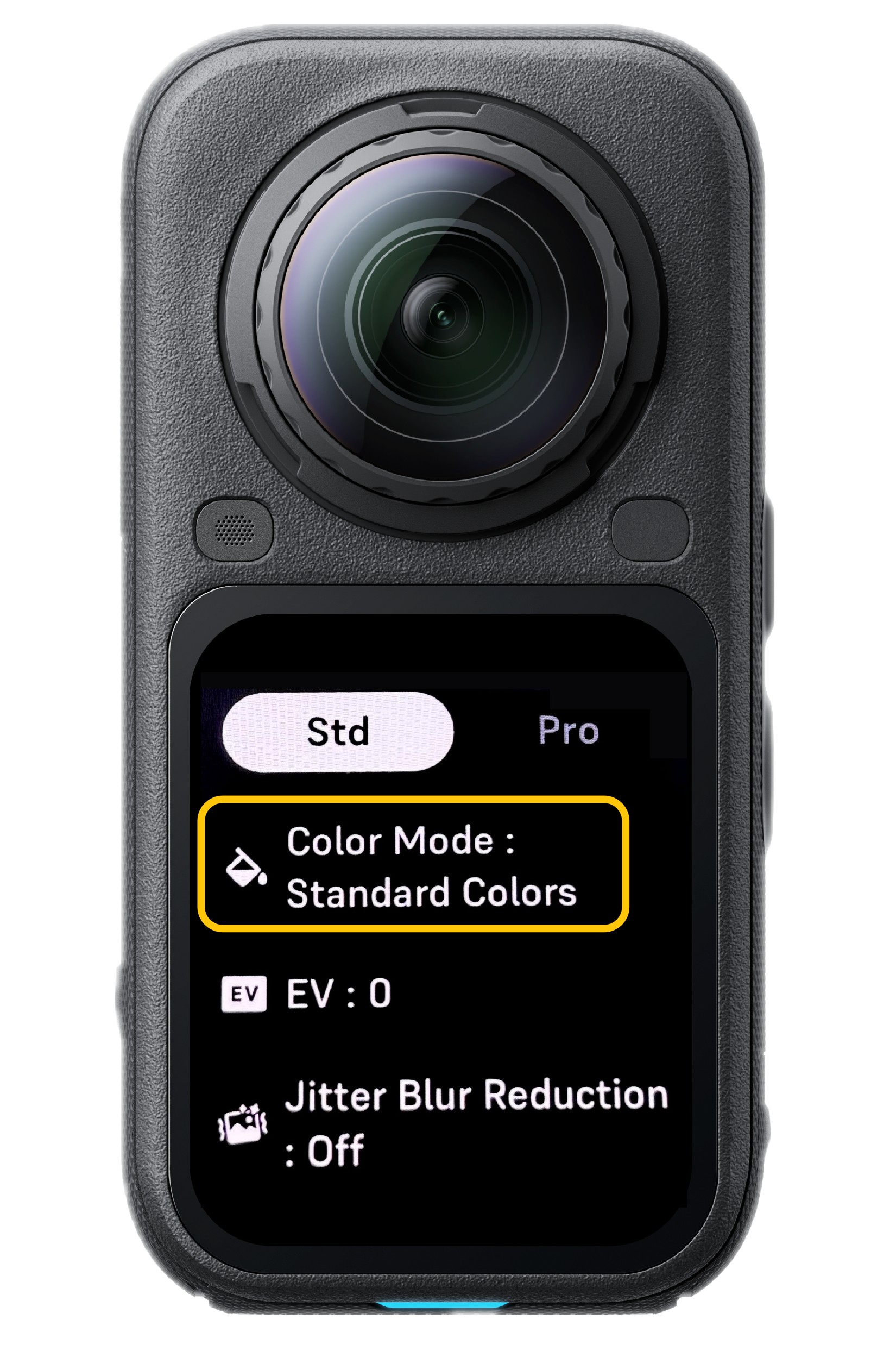
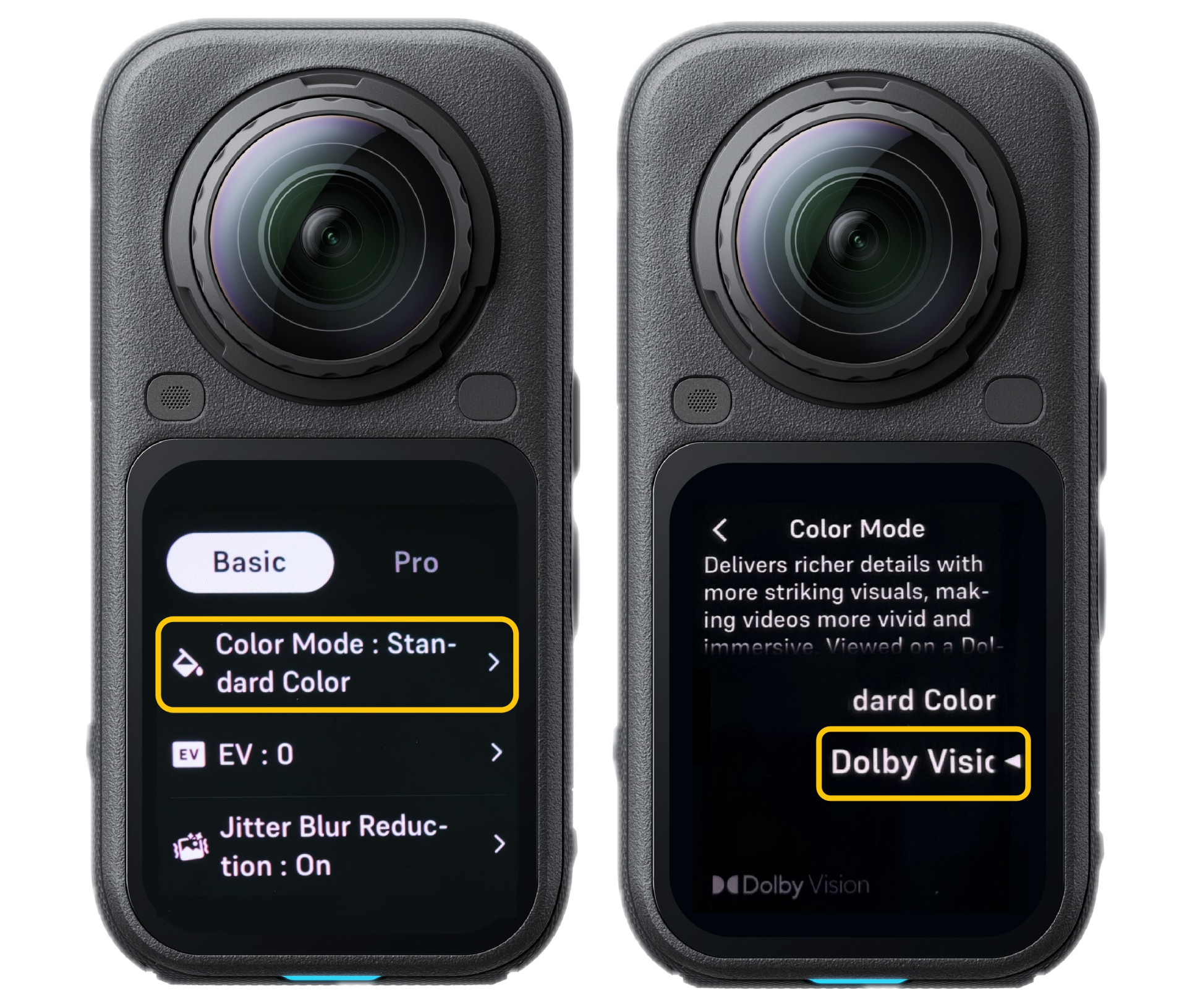
Use Dolby Vision only when the delivery chain supports it
Dolby Vision is an HDR format. On X6, Insta360 currently lists no resolution or frame-rate limitation for Dolby Vision in 360 Video or 360 PureVideo. That does not make it the automatic quality winner. Its advantage appears only when the footage is interpreted, edited, exported and viewed through a compatible workflow.
Insta360 warns that an incompatible display can show Dolby Vision footage as washed out, low contrast or incorrectly bright. Its current Studio documentation also distinguishes operating systems: macOS can export professional Dolby Vision, while Windows currently exports the footage as HLG rather than native Dolby Vision.
Choose Dolby Vision when HDR is part of the delivery specification and you can test the target device. Choose Standard when the video must look dependable across ordinary SDR screens, fast social exports and mixed-device review.
06 · I-LogUse I-Log when grading is a real production step
I-Log records a flatter image intended to retain more highlight, shadow and colour information for post-production. X6 supports I-Log in 360 Video, PureVideo, Loop Recording and Road Mode, plus InstaFrame 2.0 in Flat Mode. Filters are unavailable in I-Log, and the camera uses H.265 encoding.
I-Log makes sense when you will normalize and grade the footage, match it with another camera or need controlled colour across a commercial edit. It is usually unnecessary for a same-day travel reel. A flat image is not automatically a higher-quality final image; without a proper transform and grade, it can simply look unfinished.
AI Director conflict: Insta360 currently recommends Standard or Dolby Vision for AI Director and says the feature does not analyze I-Log video. Decide before shooting whether automatic highlight editing or manual colour grading is more important for that project.
Can I-Log and PureVideo be used together?
Yes. Insta360 lists PureVideo among the X6 360 modes that support I-Log. The combination is useful only when both low-light processing and a grading workflow are required. It does not remove PureVideo's 30fps ceiling in 360 mode, and it still inherits the I-Log editing requirements.
How settings change battery planning
The most expensive setting is not always the one with the largest resolution label. Frame rate and processing mode change the load substantially. Insta360's battery figures below were measured at 25°C with the screen off, Wi-Fi on, Standard bitrate and Standard colour. They are comparison references, not promises for a cold ski day, a hot motorcycle mount or a camera with the screen used frequently.
| 360 setting | Official laboratory runtime | Planning implication |
|---|---|---|
| 8K30 Video | About 140 minutes | Strong everyday balance of detail and endurance. |
| 8K50 Video | About 79 minutes | Use the higher frame rate when motion justifies the shorter reference runtime. |
| 6K60 Video | About 90 minutes | A 60fps workflow with slightly more stated runtime than 8K50. |
| 6K30 Video | About 170 minutes | Useful when endurance matters more than retaining an 8K source. |
| PureVideo 8K30 | About 95 minutes | Low-light processing carries a significant endurance cost versus normal 8K30. |
| 4K30 Video | About 190 minutes | Longest listed reference here, but with much less reframing resolution than 8K. |
For a real shoot, add temperature, repeated screen review, standby time, wireless connections, stabilization demands and battery age to the plan. Record a short test in the final mode, check heat and storage behaviour, and carry enough battery capacity for the specific setting rather than planning from the best published number.
Best X6 settings for common shoots
Travel daylight
Start with Video · 8K30 · Standard. This is the official general-scene recommendation and leaves strong reframing latitude without the 8K50 runtime penalty. Consider a fixed white balance across a sequence when visible colour consistency between clips matters.
Motorcycle or cycling
Choose 8K50 for detail or 6K60 for a conventional 60fps pipeline. Use a secure, appropriate mount and test vibration before the real ride. Faster frame rate cannot rescue a loose mount, dirty lens or an extreme crop of a distant subject.
Skiing and action sports
Use 8K50 for the main action and switch to 4K100 for selected slow-motion moments. Cold conditions can shorten real battery life, so the laboratory runtime table should not be treated as a winter guarantee.
Night city
Start with PureVideo · 8K30 · Standard. Keep camera movement controlled and check the lens for moisture or fingerprints around bright point lights. Use I-Log only if you have a low-light grading workflow to justify it.
Reels and Shorts
Standard colour is usually the efficient choice. Record the full sphere, then choose the vertical framing in the app or Studio. Source resolution still matters because the vertical view is cropped from the 360 capture; exporting at 1080p does not make every source mode equivalent.
HDR creator workflow
Use Dolby Vision only after testing capture, editor, export and playback. If collaborators review on Windows or mixed SDR devices, agree on the delivery path first. A technically valid HDR source can still create a confusing review process when displays interpret it differently.
Common Insta360 X6 settings mistakes
- Leaving 8K50 on all day. Use it for motion, not as a status setting; 8K30 is more efficient for ordinary scenes.
- Recording every clip at 4K100. Slow motion is useful for moments, while 4K 360 capture gives up substantial reframing detail.
- Using PureVideo in every light. It is a low-light tool with a 30fps ceiling in 360 mode, not a universal replacement for Video.
- Selecting I-Log without a grade. The source is designed to look flat and needs a post-production plan.
- Expecting AI Director to analyze I-Log. Current Insta360 guidance explicitly excludes it.
- Choosing Dolby Vision without testing playback. HDR metadata and display support must survive the whole workflow.
- Copying one ISO, shutter and white-balance recipe. Exposure should respond to light, motion and delivery; use scene-based starting points instead of a magic number.
- Ignoring the lens and mount. A fingerprint, condensation, poor pole position or loose mount can matter more than a one-step resolution change.
Insta360 X6 at SpeedyDrone Canada
The current Midnight Black Standard Bundle pairs X6's 8K50 maximum 360 Video mode with PureVideo up to 8K30, 10-bit Standard colour, Dolby Vision and I-Log. The Standard Bundle is the core camera package; check the live product page for current availability, bundle contents and purchasing conditions before ordering.

Insta360 X6 Standard Bundle (Midnight Black)
A practical starting package for creators who already know which mounts, batteries and editing workflow they need. This settings guide applies to the X6 camera; accessory and bundle choices should follow the shoot plan.
View the Insta360 X6 Standard Bundle at SpeedyDrone Canada →
Insta360 X6 settings FAQ
What is the best everyday setting for Insta360 X6?
For daytime or well-lit general scenes, start with normal Video at 8K30 and Standard colour. This is Insta360's current official recommendation for X6 and provides full 8K source resolution with much better stated laboratory runtime than 8K50. Move away from it only for a specific reason: use a higher frame rate for fast motion, PureVideo for low light, Dolby Vision for a compatible HDR delivery, or I-Log when you intend to grade the footage.
Is 8K50 better than 8K30 on Insta360 X6?
8K50 is better when the scene needs smoother motion or extra slowdown flexibility, but it is not a universal image-quality upgrade. Both modes record an 8K 360 frame. Insta360's laboratory figures list about 79 minutes for 8K50 and about 140 minutes for 8K30 under specified conditions. For travel, scenery and ordinary walking footage on a 30fps timeline, 8K30 is usually the more efficient default. Choose 8K50 for motion, not simply because the number is higher.
Should I use 8K50 or 6K60 for action?
Choose 8K50 when reframing detail is the priority and 50fps fits the delivery plan. Choose 6K60 when you specifically want a 60fps acquisition or timeline and can accept less source resolution. The official laboratory runtime is about 79 minutes at 8K50 and about 90 minutes at 6K60. Final crop strength also matters: a tight reframe of a distant subject benefits more from the 8K source than a wide, close action view.
When should I use 4K100 on Insta360 X6?
Use 4K100 for short slow-motion moments such as a ski turn, jump, splash or bike trick. A 100fps clip can be conformed to roughly quarter speed on a 25fps timeline or half speed on a 50fps timeline. The trade-off is lower 360 source resolution, which reduces detail when reframing a small part of the sphere. It is normally better as a deliberate insert than as the only setting for an entire travel or action day.
What is the best X6 setting for night video?
Start with PureVideo at 8K30 and Standard colour for night or low-light 360 scenes. That is Insta360's current recommendation. PureVideo 360 is limited to 30fps, so it is not the mode for a scene that genuinely needs 50, 60 or 100fps. Keep camera movement controlled, clean the lenses and test bright signs or streetlights before the important take. Use I-Log with PureVideo only when you have a deliberate grading workflow.
Does Auto PureVideo switch modes while recording?
No. Auto PureVideo checks the ambient light before recording starts and selects Video or PureVideo at that point. It does not keep changing modes as the light changes during the clip. In 360 mode, automatic switching is supported only up to 30fps, and QuickCapture does not support Auto PureVideo. It is a useful convenience when moving between bright and dim spaces, but you should still verify the active mode before an important shot.
Should I use Standard, Dolby Vision or I-Log?
Use Standard for the simplest everyday workflow; Insta360 documents Standard on X6 as supporting 10-bit colour. Use Dolby Vision when your editor, export and playback devices support the intended HDR result. Use I-Log when you will normalize and grade the footage or match it to other cameras. I-Log appears flat before grading, uses H.265 and disables filters. AI Director also does not currently analyze I-Log footage, so automatic editing and manual grading lead to different setting choices.
Can I use I-Log with PureVideo on Insta360 X6?
Yes. Insta360 lists PureVideo among the X6 360 shooting modes that support I-Log. This can combine low-light processing with a flatter source intended for grading. It does not remove PureVideo's maximum 30fps frame rate in 360 mode, and it does not turn the footage into a ready-to-share result. Choose the combination only when low-light capture and a deliberate post-production grade are both part of the project.
Does AI Director work with I-Log footage?
No. Insta360 currently says AI Director does not analyze I-Log video and recommends Standard or Dolby Vision for that workflow. AI Director also has its own supported modes and clip requirements. If automatic highlight selection is important, choose a supported colour mode before shooting. If colour grading and camera matching are more important, record I-Log and plan to edit manually instead of expecting the on-camera AI workflow to complete the job.
Official documentation and related reading
Insta360 X Series: Recommended Shooting Parameters
Official X6 daytime and low-light starting points.
Insta360 X6 Photo & Video Specifications
Official 360 Video, PureVideo and high-frame-rate specifications.
Insta360 X6 Hardware Specifications
Official laboratory battery-life figures and test conditions.
Insta360 X6 Colour Modes and Filters
Standard, Dolby Vision and I-Log descriptions and limitations.
Insta360 X6 AI Director
Supported workflows and the current I-Log exclusion.
Related SpeedyDrone guides
Read the X6 vs X5 Buyer’s Guide or compare Insta360 X6 with DJI Osmo 360.
Choose the X6 package that fits your shooting plan
Compare current Standard and Essentials Bundles, colours and availability from SpeedyDrone Canada. Select batteries, mounts and storage around the modes you will actually use.
Shop Insta360 X6 in Canada


