


DJI Mini 5 Pro · Creator workflow
Storage planned.
Footage accounted for.
What 42GB holds, why 4K120 file sizes look unusual, and how to get your originals off the aircraft.
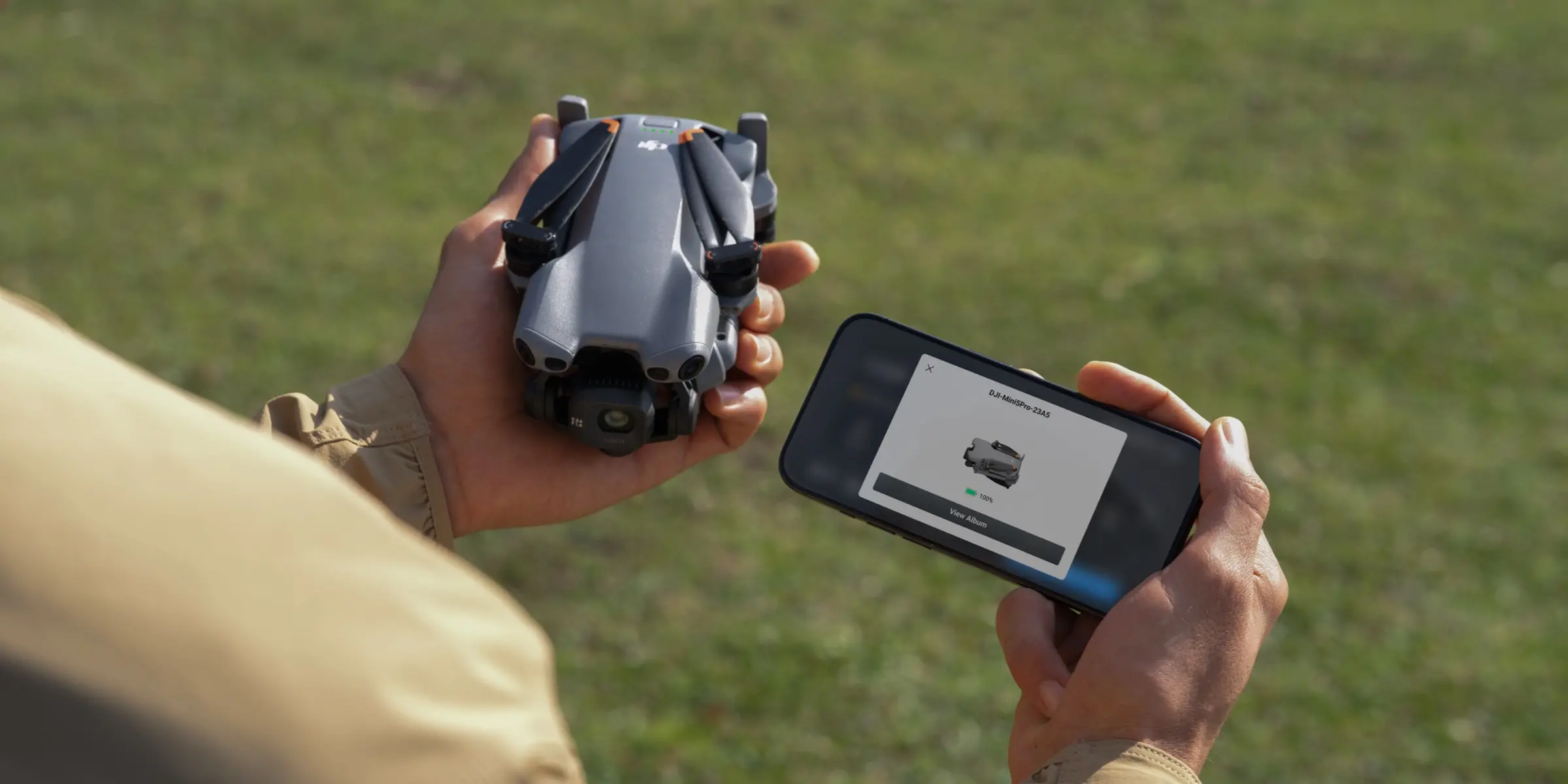
DJI Mini 5 Pro can record to its 42GB internal storage without a microSD card. For repeated high-bitrate video shoots, a compatible removable card and a regular offload routine are still the more practical setup.
At the maximum listed encoding rate of 130Mbps, the arithmetic works out to about 0.98GB per minute of actual recording. That makes 42GB roughly 43 minutes in a continuous-maximum-rate model—not a promised recording time. Your mode, bitrate behaviour and remaining free space change the result.
Moving those files matters just as much as storing them. Use QuickTransfer for phone editing, USB-C for computer access to internal storage, or a card reader for removable-media offloads. None is automatically the fastest in every setup, and none turns a single recording into a backup by itself.
This guide focuses on those decisions. For aircraft features and package choices, see our Mini 5 Pro buyer’s guide.
How much can 42GB actually hold?
Internal storage makes a forgotten card less disruptive: DJI’s manual confirms that photos and videos can be saved onboard when no microSD is available. It is a usable recording destination for short sessions, not merely space for a few emergency photos.
The limit becomes clearer when you translate bitrate into file size. DJI lists a maximum of 130Mbps and specifically associates that peak with 4K/120fps D-Log M encoding. Lower-rate recordings can use less space; the maximum is not a fixed rate for every clip.
130Mbps ÷ 8 = 16.25MB/s
16.25MB/s × 60 = 975MB/min
“Mbps” means megabits per second; “MB/s” means megabytes per second. Confusing them creates an eightfold error. For planning, 975MB is approximately 0.98GB per minute of real capture time.
| Nominal capacity | At continuous 130Mbps |
|---|---|
| 42GB internal | About 43 minutes |
| 64GB card | About 66 minutes |
| 128GB card | About 131 minutes |
| 256GB card | About 263 minutes |
| 512GB card | About 525 minutes / 8.8 hours |
| 1TB card | About 1,026 minutes / 17.1 hours |
SpeedyDrone calculations, not DJI recording-duration specifications. Decimal units: 1GB = 1,000MB; 1TB = 1,000GB. Values assume the nominal capacity is entirely available and 130Mbps continues throughout. Formatting, existing files, overhead and bitrate variation affect actual capacity. These are storage estimates, not flight-time or continuous-operation claims.
Before a shoot, check the free space in the selected destination rather than treating “42GB” as the amount still available. Internal storage also stays with the aircraft: if you need to hand footage to an assistant while preparing the next flight, removable media is easier to rotate.
Internal storage is not a mirrored backup. Do not assume a full card automatically switches recording to internal storage, or that every clip is saved in both places. Check the selected destination and available capacity in DJI Fly before recording.
Why one minute of 4K120 becomes four minutes of video
Mini 5 Pro’s 4K120 mode records slow-motion video. DJI explains that its 120fps stream is packaged into a 30fps file, so playback lasts four times as long as the capture. The aircraft’s 4K and slow-motion recordings use H.265.
Here is the relationship for a 60-second take. It changes the playback timeline, not the number of frames already recorded.
If that take runs at the maximum 130Mbps encoding rate, its theoretical video data is about 975MB. Dividing that data by the four-minute playback duration produces a parsed file bitrate near 32.5Mbps—approximately one quarter of 130Mbps, as DJI describes.
That lower number in a media-information tool does not by itself show that recording failed or quality dropped. Use capture duration for this capacity calculation and playback duration for your editing timeline. A four-minute slow-motion file is not evidence that the aircraft recorded for four minutes.
Which microSD card should you choose?
Start with the current DJI Mini 5 Pro recommended-card list, not a card’s largest advertised read-speed number. DJI lists these A2 V30 microSDXC families and capacities:
- Lexar Silver Plus: 64GB, 128GB, 256GB, 512GB and 1TB.
- Kingston Canvas Go! Plus: 64GB, 128GB, 256GB and 512GB.
Match the family and capacity carefully. A similarly named older card is not automatically the same recommendation. The specifications list exFAT as the supported file system.
V30, A2 and capacity answer different questions
V30 is a video-writing performance class: it denotes a minimum sequential write rate of 30MB/s under the SD standard’s defined conditions. That exceeds 16.25MB/s, the byte-rate equivalent of Mini 5 Pro’s listed maximum video bitrate. This helps explain why 4K120 does not automatically require V60 or V90.
It does not prove that any card carrying a V30 label is suitable. Follow DJI’s model-specific recommendations and use a genuine, healthy card. A2 describes application performance, not image quality; “128GB” describes capacity, not recording speed. A higher advertised read rate may help some offloads, but it is not the same as sustained camera writing.

View this 128GB card at SpeedyDrone →
A practical daily-offload option
The 128GB Silver Plus is a UHS-I V30 card in the family and capacity DJI recommends. It suits a routine where you transfer footage regularly and carry a spare rather than storing several shooting days on one card.
Its nominal capacity corresponds to about 131 minutes in the continuous-130Mbps model. Choose more capacity when your actual recording plan and offload interval call for it—not because a larger card improves the recorded image.
128GB, 256GB, 512GB or 1TB?
For travel with a nightly offload, 128GB is a reasonable starting point. 256GB gives more room for mixed 4K60 and 4K120 sessions across several batteries. 512GB becomes useful when you expect a substantial recording day and cannot conveniently copy files between locations.
DJI’s list includes a 1TB Lexar Silver Plus, but capacity and data protection are separate choices. One large card keeps more material together; rotating smaller cards limits how much is tied to a single card. That is SpeedyDrone’s workflow advice, not a DJI requirement. None of these capacities removes the need to verify backups.
QuickTransfer, USB-C or a card reader?
Choose the destination first. QuickTransfer gets originals to a phone for mobile work. A USB-C data cable lets a computer read internal storage and an installed microSD card. A reader separates card offloading from the aircraft.
DJI’s manual explicitly says the aircraft does not need to be powered on for computer export through a data cable. This is particularly useful when your originals are onboard and there is no removable card to take out.
For wired export, check both InternalStorage and SD_card as applicable. DJI’s export guide uses those names and advises confirming where the footage was recorded. An empty card folder does not prove the clips are missing if the aircraft was recording internally.
A reader is useful when someone else is copying Card A while you prepare Card B. Finish recording, land and power down before removing or swapping a card. Do not remove it during a photo or video capture. Actual offload speed depends on the card, reader, cable, computer and destination drive; we have not benchmarked those combinations.
Why QuickTransfer may not reach 100MB/s
DJI specifies up to 100MB/s over Wi-Fi 6 under laboratory conditions with little interference. The manual requires a locally permitted 5.8GHz band, a compatible mobile device and a suitable wireless environment for maximum performance.
Where that band is unavailable, the phone does not support it, or interference is severe, the manual describes a 2.4GHz connection with a maximum of 6MB/s. The difference can dominate an offload session.
| Assumed sustained rate | Ideal time for 42,000MB |
|---|---|
| 100MB/s | 420 seconds / 7 minutes |
| 6MB/s | 7,000 seconds / about 117 minutes |
Arithmetic only, not measured Mini 5 Pro transfer results. Connection setup, protocol overhead, changing radio conditions and device/storage performance are excluded. Neither maximum is a guaranteed sustained speed.
For a quick social edit, transfer selected originals rather than treating a full-storage download as mandatory. If wireless transfer is unexpectedly slow, check the phone’s compatibility and available storage, follow DJI Fly’s connection prompts, and move away from heavy interference such as nearby routers or Bluetooth audio devices. For a large computer archive, consider the wired routes instead.
Can you transfer with the drone switched off?
Yes, through the supported sleep-transfer workflow. The manual says Allow QuickTransfer in Sleep is enabled by default. With the aircraft in that state and within Bluetooth range, DJI Fly can wake it for transfer without a normal flight startup.
First pairing is different. Power on the aircraft, let it finish its self-check, enable the phone’s required Bluetooth, Wi-Fi and location permissions, and connect through DJI Fly. Confirm the initial connection with the aircraft’s power button when prompted. The side QuickTransfer button is not available for first pairing or while the aircraft is off.
For subsequent sleep transfers, look for the aircraft with the sleep icon in the app. Sleep is not indefinite: it ends after 12 hours of inactivity, a battery replacement, or a USB-C cable connection.
If sleep needs restoring, disconnect USB-C, press the aircraft power button once, and wait approximately 15 seconds, following the manual. If Wi-Fi is disconnected or you exit the app, with no download task running for more than a minute, QuickTransfer ends and the aircraft returns to sleep.
Trimmed Download does not cover every clip
DJI Fly’s Trimmed Download can save only the portion you need from supported footage. For Mini 5 Pro, DJI limits this feature to QuickTransfer. Slow-motion and timelapse footage are excluded, so do not plan around trimming a long 4K120 slow-motion take before downloading it.
DJI also excludes videos shorter than five seconds and cases where the cached and original durations differ by more than one second. If trimming is unavailable, download the original and make the edit afterwards.
A shooting-day routine that accounts for both storage locations
A sensible travel setup might use a 256GB recommended card as the main destination, keep internal space available for a deliberate change of destination, and copy selected clips to a phone during a break. At the end of the day, account for both recording locations before clearing anything.
- Before flying: confirm the recording destination and free space, check the card is recognised, and make a short test recording. DJI recommends test shots before important work.
- After a session: stop recording before shutdown. If changing cards, label the removed card so it is not mistaken for an empty spare.
- At the computer: copy card originals with a reader, and check internal storage through USB-C. Keep files in clearly named folders by date, location and card rather than merging unrelated shoots blindly.
- Verify the copy: compare file counts and sizes and play sample originals, including a high-frame-rate clip. For important jobs, use a copy tool that verifies checksums; sample playback alone does not validate every byte.
- Make an independent second copy: use a separate drive or a completed, verified cloud upload. A pending sync is not a finished backup. Only erase or format the recording media once the copies you need are confirmed.
Copying rather than moving keeps the recording original available while you check the destination. The 42GB onboard space is not a substitute for that second copy: files stored only inside the aircraft remain a single copy.
If a clip appears missing, check the selected storage location and both destinations first. Avoid formatting or further recording while investigating. For the other half of a multi-battery day, our Mini 5 Pro charging guide covers aircraft and hub charging separately.
Choose a card for your offload routine
The Lexar 128GB Silver Plus is a useful starting point for regular offloads. If you are also choosing the aircraft, SpeedyDrone’s DJI Mini 5 Pro Standard Combo (RC-N3) provides the 42GB onboard storage and transfer options covered here; card capacity remains a separate workflow choice.
View the Lexar 128GB Silver Plus cardMini 5 Pro storage and transfer FAQ
Can Mini 5 Pro record without a microSD card?
Yes. It has 42GB internal storage, and DJI’s manual permits saving photos and videos there when no microSD card is available. Check the actual free space and selected recording destination before takeoff. The onboard capacity does not mean recordings are duplicated automatically, nor does it confirm automatic failover when a card fills up.
How much space does one minute of 4K120 use?
At the maximum 130Mbps encoding rate described by DJI, one minute of actual capture represents about 975MB of video data. That is a planning calculation, not a fixed file size for every take. The maximum is specifically associated with 4K120 D-Log M; bitrate behaviour, the mode and file overhead affect actual results. Use elapsed recording time, not the longer slow-motion playback duration, when applying this calculation.
Why does my slow-motion file show about 32.5Mbps instead of 130Mbps?
DJI describes 120fps capture packaged at 30fps, making playback four times longer. The same data divided by that longer duration produces a parsed file bitrate around one quarter of the capture encoding rate. A 60-second take at a continuous 130Mbps would contain about 975MB and play for 240 seconds. Its calculated playback-file bitrate would therefore be about 32.5Mbps. That figure alone does not indicate a faulty recording.
Do I need a V90 card, and can I use 1TB?
DJI currently recommends specific A2 V30 microSDXC cards, including the 1TB Lexar Silver Plus. A V90 card is not automatically required just because the recording mode is 4K120. Choose a recommended family and capacity, and do not treat a speed-class label alone as compatibility approval. A larger card reduces the frequency of offloads, but it also concentrates more footage on one piece of media; it does not replace a backup.
Will a full 42GB QuickTransfer download take seven minutes?
Seven minutes is the ideal arithmetic at a continuous 100MB/s, not a promised result. DJI’s figure is a laboratory maximum. Band availability, phone support, interference, connection overhead and storage performance affect the real transfer. The manual also describes a 2.4GHz fallback with a maximum of 6MB/s; at that rate, the same arithmetic is about 117 minutes. Choose a transfer method for your destination and conditions rather than the headline maximum alone.
Why will my switched-off drone not wake for QuickTransfer?
Check that Allow QuickTransfer in Sleep is enabled and that the aircraft is still in the supported sleep state. DJI says that state ends after 12 hours of inactivity, a battery replacement or a USB-C connection. With USB-C disconnected, pressing the power button once and waiting approximately 15 seconds can restore sleep as described in the manual. Initial pairing still requires the powered-on setup and power-button confirmation; the side button does not bypass those conditions.
Can USB-C export internal footage without turning the aircraft on?
Yes. DJI’s manual says computer export over a data cable does not require the aircraft to be powered on, and can access internal storage and an installed microSD card. Use a data-capable cable and check the correct destination. A separate card reader accesses the removable card, not the aircraft’s internal storage. Do not erase either source merely because files appeared in a destination folder; verify the copies first.
Can I trim a 4K120 slow-motion clip before downloading?
Not with DJI Fly’s Trimmed Download feature. DJI excludes slow-motion and timelapse footage, and Mini 5 Pro uses this feature only through QuickTransfer for supported clips. Download the slow-motion original and trim it afterwards. For other footage, also check the minimum clip length and cached-versus-original duration conditions before assuming that a missing trim control indicates a connection problem.
Sources and calculation notes
Capacity, codecs, bitrate and the recommended-card list follow the DJI specifications linked above. Storage and transfer steps follow the Mini 5 Pro User Manual, pages 66–69. Folder and export guidance follows DJI’s media-export guide; trimming limits follow its Trimmed Download guidance.
Card-class explanations use the SD Association’s Speed Class and Application Performance Class references. Capacity and transfer-time examples are SpeedyDrone calculations using decimal units, not hands-on benchmarks. Backup and card-rotation recommendations are editorial workflow advice.


